DAFpay by Chariot

Let donors recommend a grant from a donor-advised fund (DAF) through an eligible haku donation form. Donors choose their DAF provider and submit their gift without leaving the fundraising page.

Before you start

The right setup for your organization.

Before you begin: DAFpay is available to U.S.-based 501(c)(3) public charities. Every nonprofit accepting DAFpay gifts needs its own claimed and verified Chariot account.

If your event company is not a nonprofit, complete steps 1 and 2 and leave the integration turned on. Your eligible nonprofit partners can then complete their own setup in step 5.

Have these ready

  • Your organization’s email address
  • Your nonprofit’s tax number (EIN)
  • An authorized person for verification

Getting started

Set up DAFpay
for your organization.

Follow the steps for your organization or charity partner.

01

Add an Organization Email Address Before Chariot Signup

Before creating a Chariot account, make sure an email address is listed in the organization’s settings in haku. The organization needs an email address to connect its account.
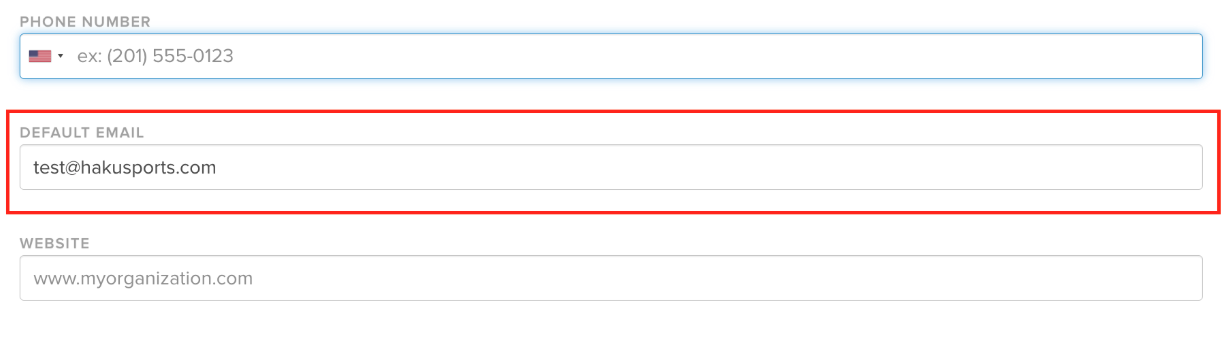
Organization settings in haku with the default email address field highlighted.
Add your organization’s email address in haku.

02

Turn On the Chariot Integration in haku

  1. In haku, open the organization’s Integrations settings.
  2. Find Chariot and turn on the integration toggle.
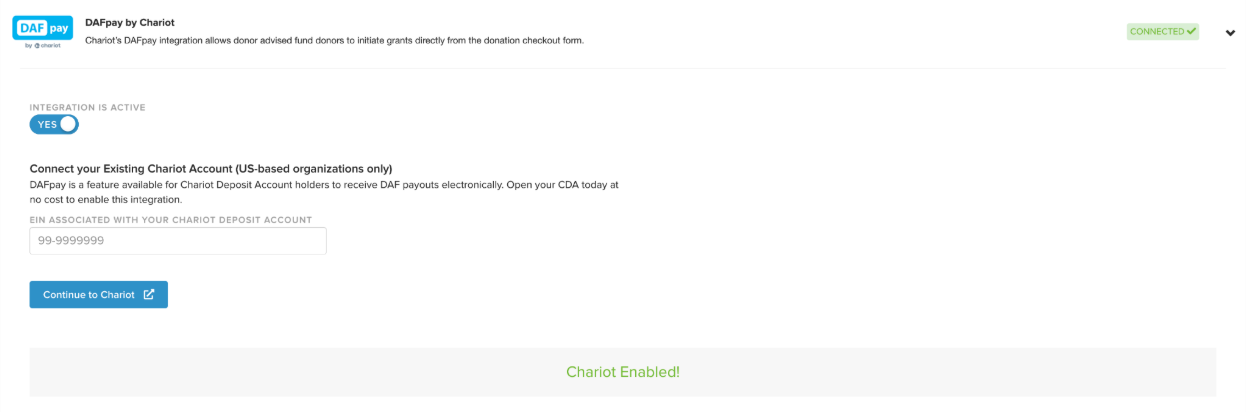
Chariot integration settings in haku with the integration toggle turned on.
Turn on the Chariot integration in your organization’s settings.

If your organization is not a nonprofit, leave the Chariot integration turned on. You do not need to create or connect your own Chariot account. Eligible nonprofit partners in your events can connect their own Chariot accounts.

If your organization is a nonprofit, continue to Step 4 to claim and connect your Chariot account.

04

Claim and Connect a Chariot Account for a Nonprofit Organization

A nonprofit must claim and verify its Chariot account before it can accept DAFpay gifts through haku. If the nonprofit already has a Chariot account, continue to the connection steps below.
Claim a Chariot Account

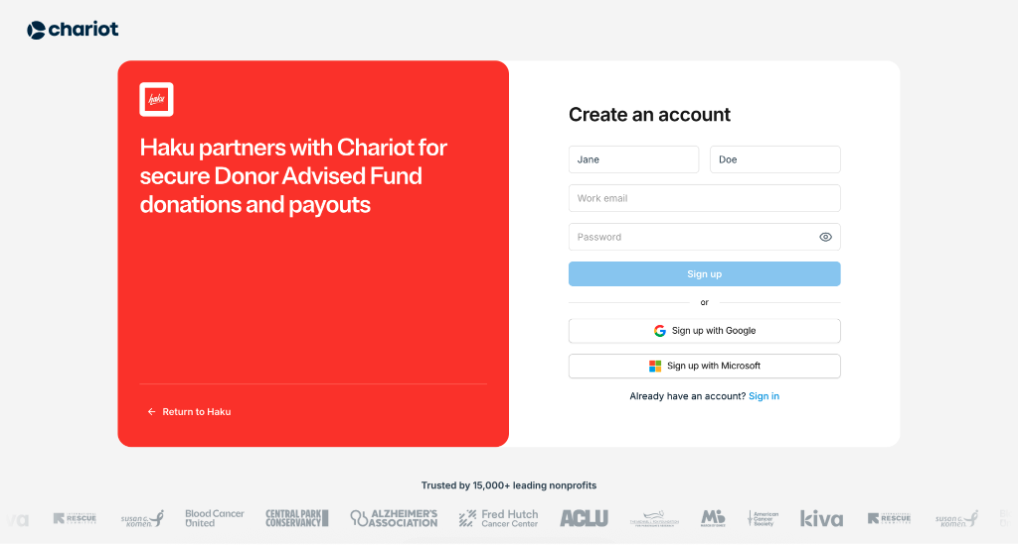
  1. Go to dashboard.givechariot.com/signup?fp=haku.
Chariot account signup page for haku nonprofit organizations.
Create or sign in to your nonprofit’s Chariot account.
  1. Search for the nonprofit by name or EIN.
  2. Have an authorized control person, such as the executive director or CFO, complete Chariot’s onboarding and verification.
  3. Wait for Chariot to approve the nonprofit’s account.

Connect the Account and Enable DAFpay in haku

  1. In haku, open the organization’s Integrations settings and find Chariot.
  2. Select Connect to Chariot.
  3. Enter the organization’s Company Tax Number.
  4. Select Continue to Chariot and complete any remaining Chariot verification or onboarding steps.
  5. After Chariot verifies the account, return to the haku Integrations page. Chariot does not automatically return you to haku.
  6. Turn on the organization’s DAFpay setting. It defaults to No.
  7. Review the DAF payment terms. Scroll through the terms to make the agreement checkbox available.
  8. Select the checkbox to accept the terms, then select Enable DAFpay.
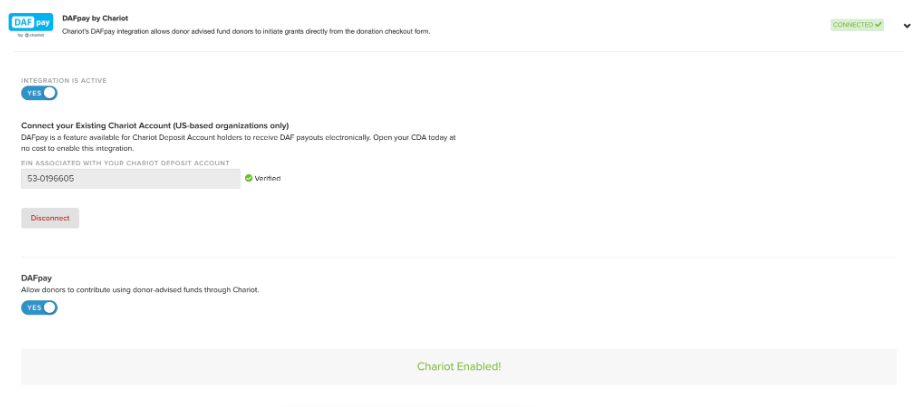
Verified Chariot account connected in haku with DAFpay enabled.
Connect your verified account and enable DAFpay in haku.

haku checks the Chariot account status when you return to the Integrations page. If Chariot is still reviewing the account, return to haku after Chariot confirms the account is approved.

Note: Connecting Chariot allows eligible charity partners to set up DAFpay. A nonprofit organization can keep DAFpay turned off for its own fundraising pages while leaving the Chariot integration connected.

05

Enable DAFpay for a Charity Partner

The organization’s Chariot integration must be turned on before a charity partner can access the DAFpay setup option. Each nonprofit partner that accepts DAFpay must provide its own tax number and complete its own Chariot verification.

  1. In the partner account, open Business Settings.
  2. Enter the partner’s Company Tax Number.
  3. Under Fundraising, select Enable DAFpay to start Chariot verification or onboarding.
  4. After Chariot verifies the account, turn on the partner’s DAFpay setting. It defaults to No.
  5. Review and scroll through the DAF payment terms, then accept them.
  6. Enable DAFpay for the partner.

If the partner’s Company Tax Number is missing, the partner account displays a notice directing the partner to Settings to enter it. After the tax number is added, the notice is removed and the partner can continue with setup.

Note: The organization’s Chariot connection does not replace the partner’s own Chariot account. Each nonprofit that accepts DAFpay gifts must complete its own verification.

06

Donor Checkout

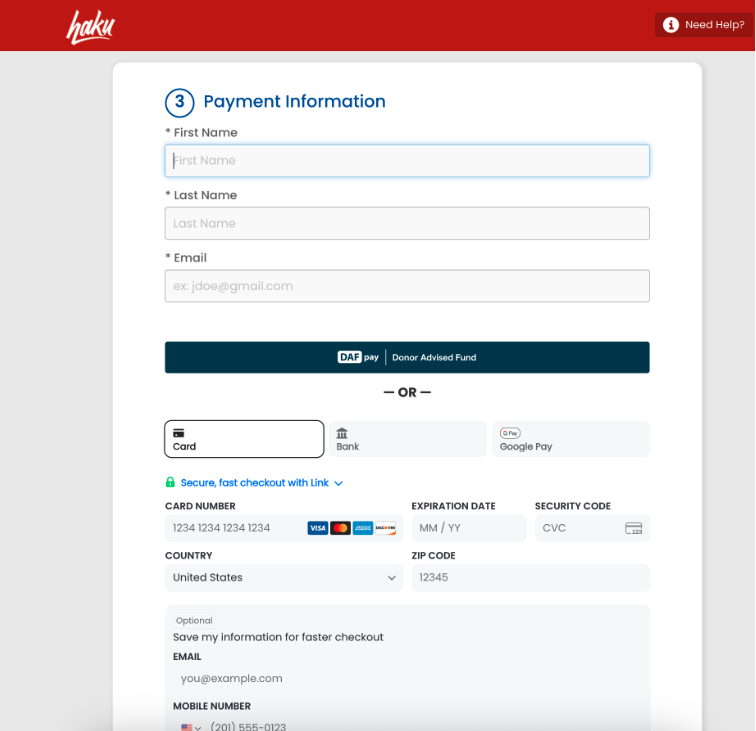
  1. The donor chooses DAFpay at checkout.
  2. The donor selects their DAF provider from the available providers.
  3. The donor signs in to authenticate their DAF account.
  4. The donor submits the gift.
Donation checkout showing DAFpay as a payment option.
Donors can select DAFpay during donation checkout.

If the donor changes the gift amount in the Chariot checkout, haku reflects the updated amount. The donation record and fundraiser total appear in haku after the gift is submitted. The grant payment may arrive later, after the DAF provider approves it.

DAFpay donors receive the usual haku confirmation page and thank-you email. These can include a gift acknowledgment and thank-you message.

Frequently asked questions

Does connecting Chariot turn on DAFpay for every organization and partner?

Connecting Chariot lets the organization and eligible partners complete setup. Each nonprofit must complete its own Chariot verification and enable DAFpay. The organization can keep DAFpay turned off for its own pages while leaving Chariot connected for partners.

Can an event company that is not a nonprofit use DAFpay?

An event company does not need its own Chariot account to offer DAFpay for nonprofit partners. Each nonprofit partner accepting DAFpay must claim and verify its own account and enable DAFpay.

Where can donors use DAFpay?

Donors can use it on eligible organization, partner, individual, and team donation pages. It is not available for registration add-ons, ticket purchases, merchandise, or auction items.

Can donors make recurring donations with DAFpay?

No. DAFpay on haku supports one-time donations only.

Can donors pay for more than one donation at a time with DAFpay?

No. Only one donation at a time can be paid using DAFpay.

When will the nonprofit receive the money?

The donation can appear in haku after the donor submits it, but the grant funds arrive after the DAF provider approves the grant. Timing varies by provider and may range from a few days to several weeks.

Where can I see how a donation was paid?

Open the donation from the haku donation list to see its payment method. You can also run an extract to review payment methods across donations.

How do donors request a refund or cancel a DAF gift?

Donors should contact their DAF provider. DAFpay gifts can’t be refunded through haku.

Does DAFpay use a separate CRM sync process?

No. DAFpay gifts follow the organization’s existing donation and CRM integration setup.